
Safe Static Data Generation for a Next App — by an AI Agent and in the Settings
A new way to manage your app’s settings on the agentic engineering platform — by hand or by asking an AI agent — that keeps every page static and never lets one stray line turn your project dynamic.
“Every month Fractera takes one more boring chore off the developer’s plate. This time it is your app’s settings — and the quiet story of how a single line of code can hand you a five-figure bill.”
Fractera is an Agentic Engineering Infrastructure: a self-hosted workspace where AI models write and run your app on your own server. The newest piece is small to describe and surprisingly large in impact — a clean way to manage everything your app says about itself (its name, description, SEO, social cards, PWA, even its languages and images), with one strict promise: every change keeps your site static. This post is the tour: the problem nobody wants to deal with, a real horror story about the cost of getting it wrong, and the two ways Fractera now solves it.
Metadata in agentic engineering: the SEO groundwork everyone leaves for last
Metadata is the face your app shows to the outside world: the title in the browser tab, the description Google prints under your link, the image that pops up when someone shares you on social, the icons, the structured data that makes search engines understand who you are, and the set of languages you speak. It is not glamorous, so it is almost always the last thing anyone touches — usually the night before launch.
What counts as metadata in a Next app
More than people expect. The page title and its template. The meta description and the OpenGraph/Twitter cards. The favicon and the full set of PWA icons. The canonical URL. Robots rules (index / follow). Verification tokens for Google and Yandex. JSON-LD blocks (WebSite, Organization, LocalBusiness) — the structured data that earns you rich results. The author identity. Analytics. And the languages your site is generated in. Miss any of them on day one and you quietly leak SEO from the very first crawl.
Why the standard Next metadata path leaves an AI agent with the rakes
Next.js gives you a powerful tool for this — `generateMetadata` — but it is code you write by hand for every route, and it is easy to forget a field, easy to mistype a value, and every edit means a rebuild. Worse, the moment metadata starts reading per-request data, it can quietly drag your rendering strategy with it. Which brings us to the expensive part.
The €90,000 night: when a static site silently turns dynamic
There is a now-famous story in the developer world: an app went viral, and its owner woke up to a hosting bill in the tens of thousands. The best-documented case — the art platform Cara — ran up roughly $96,000 on its serverless host over a single weekend when growth exploded. The documented cause was simple traffic: a sudden flood of visitors against per-request pricing.
But talk to enough developers and a quieter pattern shows up behind many of these bills. A project that was perfectly static during testing gets one innocent-looking change right before launch — and silently flips into dynamic rendering. Now every single visit, including every bot, makes the server build the page from scratch. Multiply that by a viral spike and the meter spins like a slot machine. We can’t prove that is what happened in any one case, but the mechanism is real, it is common, and it is exactly the kind of mistake this release is built to prevent.
What “dynamic rendering” actually means for a self-hosted app
Think of two ways to hand someone a poster. Static: you print it once and give everyone the same copy — cheap, instant, basically free no matter how many people show up. Dynamic: you redraw the poster by hand for every single visitor — slow, and you pay for every redraw. A static page is built ahead of time and served as a finished file. A dynamic page is rebuilt by the server on every request. For a public site under real traffic, that difference is the gap between a flat hosting bill and a runaway one.
The one line that flips a whole Next app into dynamic rendering
Here is the trap. If a shared, top-level layout reads per-request data — calling something like `headers()` or `cookies()` in the root layout — Next.js has no choice but to render everything beneath it per request. One line in one shared file, and your entire site — every page — silently leaves the cheap static path. Nothing looks broken in testing. The bill is where you find out.
Why an AI agent in agentic engineering is especially prone to it
An AI coding agent reaches for whatever makes the immediate task easiest, and reading request data in a layout often is the easiest path — so a model will happily add the very call that flips the site dynamic, with no idea of the cost it just introduced. That is why the skeleton of the app cannot be left to chance.
Why postponing metadata is a trap for any agentic engineering project
Leaving settings “for later” compounds in three ways. You leak SEO from day one, because search engines index whatever they find on the first crawl — empty descriptions and missing structured data included. You invite the dynamic-rendering mistake, because last-minute, rushed changes are exactly when someone slips a per-request call into a shared layout. And you pay in rework, rewriting under deadline pressure what should have been right from the start. The healthy version is the opposite: settings ready out of the box, changeable at any time, with zero risk to your rendering strategy.
The fix, part one: app settings by hand on the agentic engineering platform
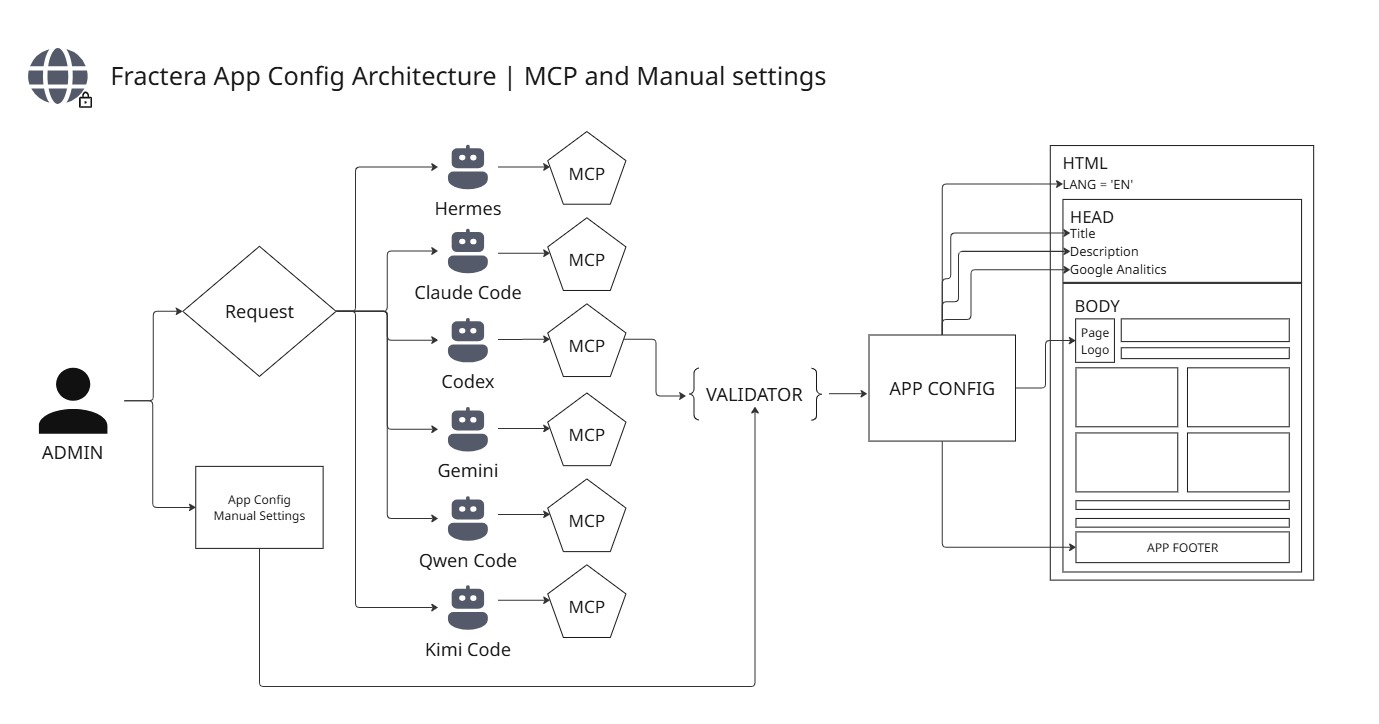
And here is the part we have not even announced until now: every deployed Fractera app ships with a single App Settings screen (in the Admin area) where you manage all of this in one place — branding, SEO, OpenGraph, PWA, author, social, structured data, languages, and images. You type a value, you save, and it shows up on the next page load — with no rebuild and, crucially, without ever forcing the site dynamic. It applies through cache revalidation, the same disciplined approach behind static-first rendering.
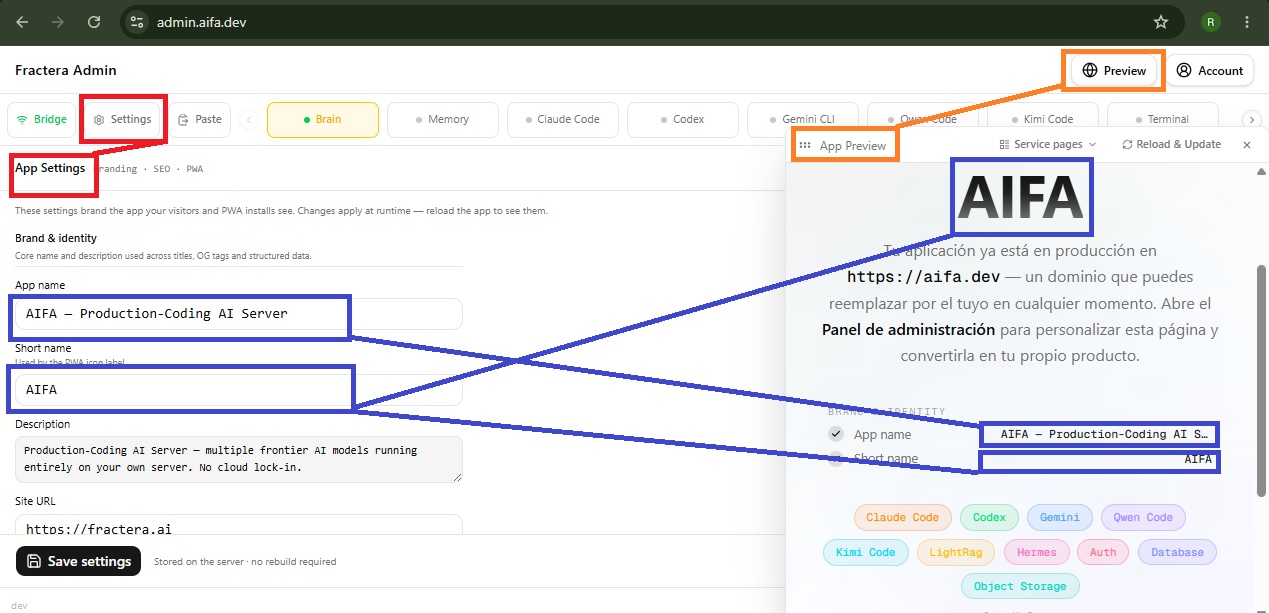
For a startup this is quietly huge: real, production-grade SEO and branding on day zero, with no specialist, no separate tool, and no chance of the configuration step quietly wrecking your hosting bill. It is the boring, expensive part of launch — done for you, safely.
What you can configure: the full app-settings map
There is a lot here, grouped into nine sections, and below is every single field with what it does and when you would touch it. Nothing hidden, nothing abridged.
Brand & identity
- App name — the public name of your app. It drives the page title, the OpenGraph tags and the structured data. The single most important text field.
- Short name — the compact wordmark used as the PWA icon label and on the home screen.
- Description — your one-line pitch. It becomes the meta description, the social-share description, and the structured-data description — the snippet the world reads before clicking.
- Site URL — the real canonical address of your app. Drives the metadata base, the OG url and the structured data. Set this to your actual domain.
- Support email — the public contact address shown in your Organization contact structured data.
- Chat brand — the name of the built-in chat assistant as your end users see it.
App icons & PWA
- PWA theme color — the theme color in the installed-app manifest (hex).
- PWA background color — the splash-screen background of the installed app (hex).
- PWA display — how the installed app is presented: standalone, fullscreen, minimal-ui or browser.
- PWA orientation — the preferred orientation: portrait, landscape or any.
- PWA start URL — the address the installed app opens at.
- PWA scope — the navigation scope of the installed app.
- Browser bar color (light) — the browser theme color in light mode (hex).
- Browser bar color (dark) — the browser theme color in dark mode (hex).
Author
- Author name — the default content author, used in metadata and Person structured data.
- Author email — the author’s contact email in metadata.
- Author URL — the author’s homepage or profile link.
- Author job title — the author’s role (Person schema).
- Author bio — a short biography.
- Author Twitter — the author’s Twitter handle or URL.
- Author LinkedIn — the author’s LinkedIn handle or URL.
- Author Facebook — the author’s Facebook handle or URL.
Social profiles
- Twitter — your brand Twitter; feeds the Twitter card and the Organization “same as” links.
- GitHub — your brand GitHub URL; an Organization “same as” link.
- LinkedIn — your brand LinkedIn; an Organization “same as” link.
- Facebook — your brand Facebook; an Organization “same as” link.
SEO
- Indexing — allow or block search engines from indexing the whole site. The master switch.
- Title template — the pattern for page titles; a placeholder is replaced by each page’s own title.
- Robots: index — whether robots may index your pages.
- Robots: follow — whether robots may follow your links.
- Keywords — comma-separated meta keywords (a minor signal, but there if you want it).
- Canonical base URL — the base for canonical links; usually the same as your Site URL.
- Sitemap URL — an explicit sitemap address, if it differs from the default.
- Google verification — your Google Search Console verification token.
- Yandex verification — your Yandex Webmaster verification token.
OpenGraph
- OG type — the OpenGraph object type: website, article or product.
- OG site name — the site name shown in social previews.
- OG locale — the OpenGraph locale, for example en_US.
- OG image width — the social image width in pixels.
- OG image height — the social image height in pixels.
Analytics
- Enable Google Analytics — turn the analytics tag on or off.
- GA Measurement ID — your Google Analytics measurement ID.
Structured data (JSON-LD)
- WebSite schema — emit WebSite structured data.
- Organization schema — emit Organization structured data (uses your social profiles as the “same as” links).
- LocalBusiness schema — emit LocalBusiness structured data; needs the address fields below.
Local business / address
- Street address — used only when the LocalBusiness schema is on.
- City — the city for the LocalBusiness schema.
- Country — the country for the LocalBusiness schema.
- Postal code — the postal code for the LocalBusiness schema.
- Phone — the phone number for the LocalBusiness schema.
- Latitude — the latitude for the business location.
- Longitude — the longitude for the business location.
- Opening hours — for example, Mo-Fr 09:00-18:00.
Images — and a quiet bonus
Beyond text, App Settings holds your images: the logo, the square icon source that generates your favicon and full PWA icon set, the social/OG image, and illustrations. Here is the bonus most people miss — the illustration fields come in light and dark pairs: the home illustration, the loading screen, the chatbot, the author photo, and — the favorite — your own 404 and 500 error pages. Upload a light and a dark version, and the site automatically shows the right one for the visitor’s theme. Want a branded, on-style 404 in both themes? Drop in two images. That polish ships out of the box, as a small bonus. (Image fields are uploaded through the panel, which crops and stores them — the AI path handles text, not file uploads.)
The fix, part two: app config by an AI agent
Everything above can also be done without opening the panel at all — by simply asking an AI agent in plain words. “Change the description to ‘Acme Corp’.” “Turn on the Organization schema.” “Add French.” The agent finds the right field, checks the value, writes it, and the change is live on the next page load — same as the panel, same static guarantee. Languages are the one honest exception: they decide which pages get built, so the agent tells you they appear after a short rebuild.
The lovely part is that this is not tied to one assistant. Every agent in the workspace can do it — and a project running a single lone agent, with no orchestrator at all, still has the full capability. The deep technical walkthrough lives in the documentation: Using MCP for App Settings in Agentic Engineering. This post is the light version; that one is the manual.
How the agentic engineering platform keeps your app static
This is the real breakthrough, and it is worth saying plainly: Fractera guards the skeleton of your app on purpose. The routing layer, the metadata generation, and the language handling are kept on rails, so an AI agent cannot quietly slip a per-request call into a shared layout and flip your whole site dynamic. Settings apply through revalidation, never by forcing dynamic rendering. That is what closes the door on the €90,000 night — automatically, without you having to know any of the traps exist. Automating away a mistake that has cost real teams real fortunes is exactly the kind of thing worth calling a breakthrough.

Experiment relentlessly. If you work “the way it’s done,” your ceiling is known in advance. Try to do things differently — not like everyone else.
 Roma ArmstrongFounder at Fractera.ai
Deploy a workspace where your settings are production-ready on day zero — and stay static no matter who edits them.
Deploy with AIFrequently asked questions
- Does changing a setting require a full rebuild?
- No. Almost every setting (name, description, SEO, OpenGraph, PWA, JSON-LD, address) lives in a config file the app reads as it renders, so a change shows up on the next page load while the pages stay static. The one exception is the language set: it decides which pages get generated, so it is build-time and needs a rebuild — a few minutes — and you are told that up front.
- What happens if a visitor has JavaScript turned off?
- The site still works. Pages are pre-built into real HTML on the server, so the content, metadata and links are all there with no JavaScript at all. That is the whole point of static-first: the app does not depend on client-side code to render its core.
- How is this different from configuring a normal Next app by hand?
- In a normal project you wire metadata in code and risk a single dynamic call in a shared layout flipping the entire site to per-request rendering. Here the settings are data in a file, written through a guarded path, and the app skeleton is kept static by design — so you get the convenience of a settings screen without the dynamic-rendering footgun.
- Who is allowed to change the settings?
- The owner of the workspace. The manual panel sits behind the admin area, and the AI path is reachable only from inside your own server. Settings are part of your project, not something an anonymous visitor can touch.