
A Universal Footer That Builds Itself — and Already Speaks 82 Languages
It is hard to imagine a page that does not need a footer. So our agentic engineering platform ships one that fits everything — a portfolio, a company page, a full app — and configures itself almost entirely on its own.
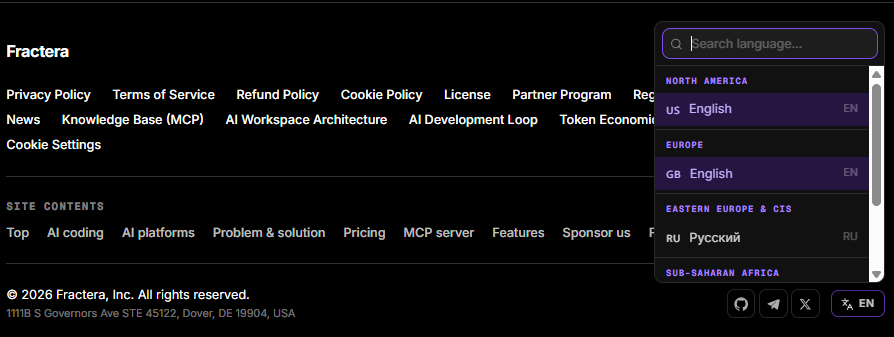
It is genuinely hard to picture a project or a page that does not need a footer. A portfolio, a small company page, a full-blown app — they all want that strip at the bottom with the links, the name, the social icons. So we decided to build one universal footer that fits all of them, and to make it configure itself almost entirely on its own. Fractera is an Agentic Engineering Infrastructure, an agentic engineering platform where AI agents build your app — and the footer is a small but perfect example of the philosophy: you describe what you want, the platform handles the wiring.
Two Sections on (Almost) Every Page
On most pages the footer has two simple horizontal sections. The top one lists all the footer pages you choose to add as your project grows. The bottom one is your company section — and it needs no setup at all, because it is pulled straight from your app config.
- Top — your footer pages. Every page you decide belongs in the footer shows up here as a link. You add them simply by saying so to an AI agent over MCP; the pages and their links form and update on their own. (A dedicated write-up on adding that capability to your project is coming very soon.)
- Bottom — your company, auto-filled. Your company name, address and social links appear automatically the moment you set them in Admin → Settings → App Settings. No footer editing, no copy-paste.
The Bottom Section Configures Itself
The company section is the clearest example of "you never touch the footer". Everything in it is data your app already knows, so it simply reflects your settings:
- Company name and address — straight from your app configuration, the same settings you brand the rest of the site with.
- Social links — set your profiles once in App Settings and the icons appear by themselves.
- A theme toggle — light, dark, or automatic (follow the system); it is just there.
- A language switcher — if you run multilingual mode and add more than one language, a switcher appears on its own, with a searchable dropdown grouped by region so visitors hop between languages and regions in one click.
You Just Say It — the Pages Appear
When you add pages that should show in the footer, you do not open a settings screen and wire links by hand. You simply say it, and both the pages and their links appear inside the footer — you do not even think about configuration. And if later you want to change the order of those pages, again, it is enough to just say so out loud. The same effortless instinct runs through the platform's public authorization switch and the rest of the app shell: describe the intent, and the agent does the work.
The Home Page Gets a Third Section
That is the footer for most pages. The home page gets one extra, third section — also configured automatically — that serves as navigation between the sections of the home page itself. It shows up only on the home page, and on purpose: the home page usually carries the bulk of the content, the part that actually benefits from quick in-page navigation. Your other pages tend to be more compact and simply do not need section-to-section jumping, so the footer stays clean there.
And because the whole thing ships ready for multilingual work, the footer's built-in labels already exist in 82 languages — whatever language you choose for your app, the wording is there, no extra translation needed. Add a second language and the switcher simply appears. Leave a single language and it stays hidden. Automatic, again.

You can only find new ideas through experience. There is a problem — try to see a new opportunity in it. You see a competitor — copy them and do it better.
 Roma ArmstrongFounder at Fractera.ai
Deploy your own workspace — your footer is already there, already multilingual, waiting for the first page you add by voice.
Deploy with AIFrequently asked questions
- Do I have to build or configure the footer?
- Almost never. The universal footer ships in every project, already multilingual. Its company section — name, address, social links — fills itself from your App Settings, the theme toggle and (in multilingual mode) the language switcher appear on their own, and you add footer pages just by telling an AI agent. In most cases you never think about building the footer at all.
- How do I add pages to the footer or reorder them?
- You say it. Tell an AI agent over MCP which page should appear in the footer and it shows up there as a link, formed and updated automatically — no settings screen, no hand-wired links. To change the order of the footer pages, again you simply say so out loud. A dedicated write-up on this capability is coming soon.
- Why does the home page footer have an extra section?
- The home page gets a third, auto-configured section for navigation between the home page's own sections. It appears only on the home page on purpose: the home page usually holds the bulk of the content that benefits from in-page navigation, while other pages tend to be more compact and do not need section-to-section jumping.
- Is the footer multilingual out of the box?
- Yes. The footer's built-in labels already exist in 82 languages, so whatever language you pick for your app the wording is there with no extra translation. If you run more than one language, a searchable, region-grouped language switcher appears in the footer automatically; with a single language it stays hidden.