
AI Draft Settings: The Instruction & Skill Staging Conveyor for AI Agents
It ships with every Next.js-based starter — a safe staging layer where people and AI agents draft, test, and store system instructions, skills, and MCP tools before they reach production
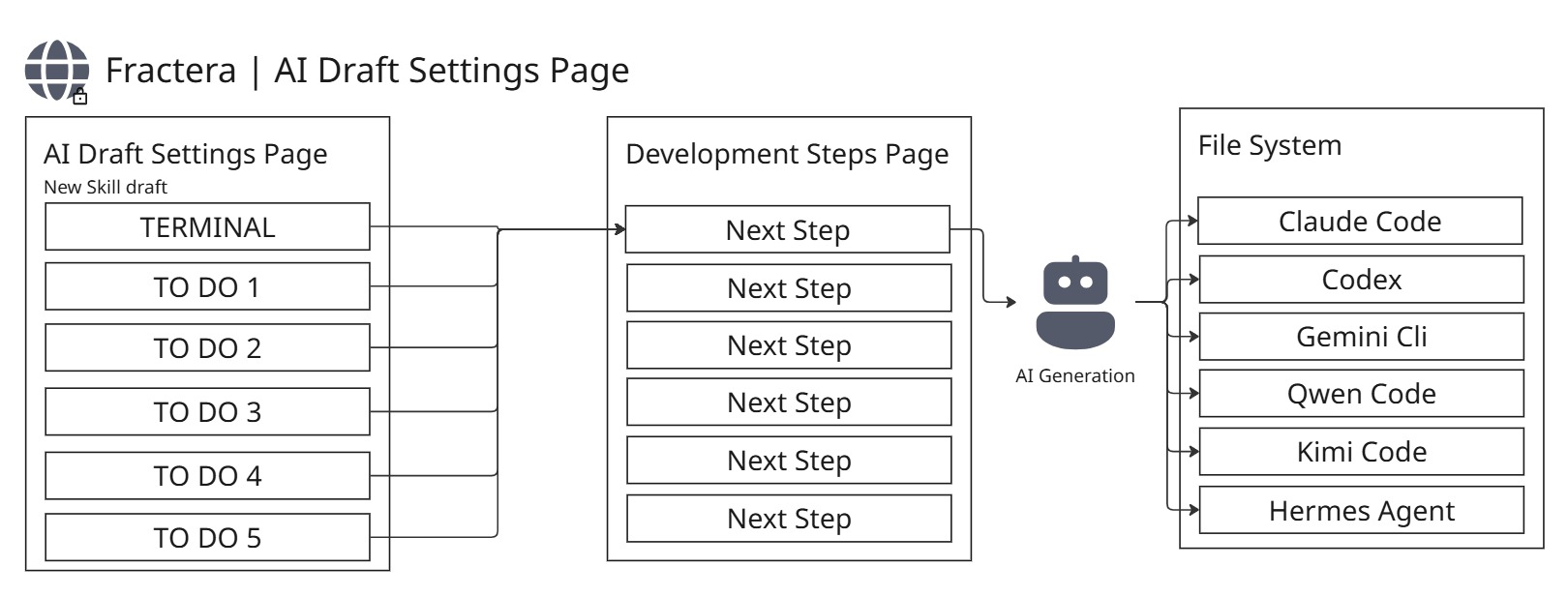

When the thought first came to me that creating instructions, skills, and connectors should be automated, for a long time I could not picture how to do it by hand at all. And now the day has come when I took the first step toward a fully automatic system of evolving, self-replicating artificial-intelligence agents — for code first of all, but by no means only: for life, for learning, for entertainment, for anything. This semi-automatic line is already a working tool today. Let us see what happens in two weeks. I believe that one day Facebook will be buildable from a single request.
 Roma ArmstrongFounder at Fractera.ai
Fractera is adding a new page to every workspace: AI Draft Settings. It is the place where you — or one of your AI agents — propose a new skill, a new instruction, or a new connector, and hold it safely as a draft before it ever touches your live setup. It is part of an agentic engineering platform — the first piece of something bigger we are building: a system that lets a workspace grow its own intelligence over time. Below is what the page does, how you and your agents use it, and where it is headed — in plain words.
The Control Room for Custom System Instructions & MCP Definitions
Think of it as the control room for the AI side of your project. A normal admin panel manages your business data — users, orders, content. This page manages something different: what your AI agents know and what they are allowed to do. On it you can see and shape each agent's instructions, the skills it carries, and the MCP tools it can call. Nothing here configures your app's features — it configures the minds behind them.
It comes with every Next.js-based framework
Today the AI Draft Settings page is part of every Next.js-based starter Fractera deploys. You do not install it, switch it on, or wire it up — the moment your workspace comes online, the page is already there and already connected to all six AI agents. (Support for other framework families is on the way; there is more on that near the end.)
- Six agents ready out of the box: Claude Code, Codex CLI, Gemini CLI, Qwen Code, Kimi Code, and Hermes
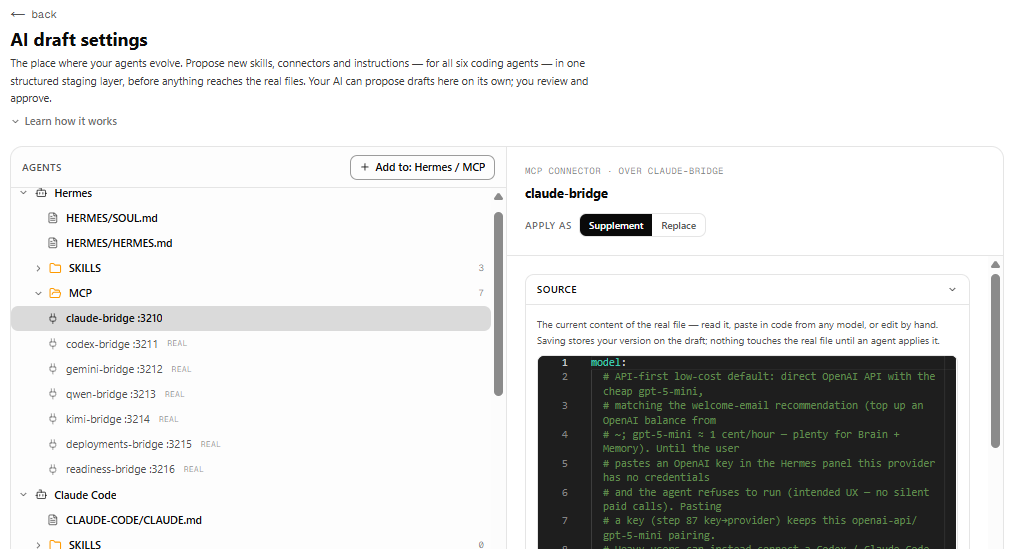
- A live view of each agent's real instruction files and active skills, read straight from the project exactly as it is right now
- A draft layer where new ideas wait safely before they go live
- Each agent's MCP tools, listed and editable in a full code editor
- A guarded "danger zone" for removing things on purpose — with a clear before-and-after view and a confirmation step
Drafting Workflows: Manual Engineering vs Autonomous Agent Proposals
Doing it yourself, in the interface
Open the page and you see two panels. On the left, the six agents. Click one and the right side fills in with that agent's real instructions, its skills, and its registered tools — exactly as they sit on disk. Those views are read-only on purpose: they are the source of truth, not a scratchpad. The scratchpad is the draft layer on top. You write down the change you want — a new skill, a tweak to an instruction, an idea for a tool — and save it. The draft is marked as waiting, and it stays there until something acts on it.
Letting an agent do it
The page is not just for people. Any of the agents can use it too. In the middle of a normal working session, Claude Code (or any of the others) can call a built-in skill — `propose-new-agent-skill-or-mcp` — describe the capability it has in mind, and the draft shows up on the page on its own. Hermes does the same thing through its own connector (`owner_draft_create_record` on the `ai-draft-bridge` server, port 3221). Here is the part that matters most: every agent carries its own copy of this ability. It keeps working even if your project runs just one agent and nothing else — no shared brain required, no single point that can fail.
Safe Prompt Management: Preventing Context Window Inflation
How it works
At some point you — or one of your agents — will want to change how an agent behaves: update an instruction, add a new skill, or hook up a new connector. Any model on the platform can start this, because these settings are copied to every agent. That is on purpose: even if your whole workspace is a single agent — only Codex, say, or only Hermes — the ability is still there. Nothing about it depends on one particular agent being present.
You can say what you want in plain words — just write down your wish for how the agent should work. If you would rather be precise, you can hand it over in a structured way instead: through a small built-in terminal, or step by step with a to-do-style tool. One thing is important to be clear about: writing the wish is not the actual technical work. It does not build anything yet. It is a note — a clear brief kept for later, for the tool that will eventually generate the real skill.
Every draft you add marks its parent container as changed — a small orange req badge appears next to it, so it is obvious that something is waiting. Whenever the moment is right, you or an agent can send that draft into work, either by pressing the matching button or as the result of a logical step. When that happens, the AI first clears the existing note, and then a fresh entry called Next Step is created on the Development Steps page. All the details of the task move into that entry. From there — depending on what else is running and what matters most — either an agent or a person starts the real build at the right time.
Notice what does not happen: the draft is never turned into code automatically the instant you create it. That is a deliberate choice. Kicking off a build right then could crowd the agent's active context window, drag down the quality of the code it is generating in the main process, or — in the worst case — break the run entirely, for example by burning through your token budget earlier than you planned. So the hand-off is always a conscious step, taken when it makes sense.
In short, the lifecycle is three simple moves:
- Create a draft — write down the skill, instruction, or connector you want.
- Move it into the queue — when you are ready, send the draft on; it becomes a Next Step on the Development Steps page and waits its turn.
- Turn it into the real thing — an agent (or you) builds the actual skill, instruction, or connector, and it goes live.
From Verified Draft to Live Execution Environment
Right now the loop is semi-automatic, and it is already fast. You describe what you want on the AI Draft Settings page. You send it on. An agent picks it up, builds it, and the new ability ships — often inside the same session. You set the direction; the AI does the building.
This is the first part of a larger plan — a seven-stage pipeline for growing a workspace's skills. As we add the rest — automatic testing, catching regressions, visual diffs, usage data, and a feedback loop that tunes itself — each stage needs a little less human help than the last. The end state is a loop that runs on its own from start to finish, much like Fractera's autonomous development loop: a need shows up, an agent plans it, builds it, checks it, ships it, and writes down what happened — with nobody pressing a button.
“The AI Draft Settings page is where human intent and machine capability meet. Today it needs a trigger. Tomorrow it will not.”
Cross-Framework Staging: Pre-Configured Transports for Every Stack
Fractera started on Next.js, but the idea was never meant to stop there. AI-native development should not belong to a single framework. So we are bringing the same setup — the same depth that Next.js developers have today — to every popular web framework and application stack.
The way we do it is straightforward. For each framework, we build a dedicated ai-workspace transport: a ready-made integration layer that wires that framework into Fractera's shared services, so you never have to figure out the plumbing yourself. Here is the full set of stacks we are bringing on board — open it up to see them all:
What every framework gets
- A built-in database — local SQLite through Fractera's data service, with a data layer that feels native to your framework
- Authentication — sessions and a simple role model (guest, user, architect), fitted to how your framework already handles auth
- File and media storage — local object storage mounted at the framework level, with upload and download APIs ready on day one
- The full AI agent stack — all five coding agents (Claude Code, Codex, Gemini CLI, Qwen Code, Kimi Code) plus the Hermes brain, connected from the first deploy
- One MCP architecture — the same tool-first model no matter the stack; agents call tools, not raw APIs
We are rolling these out one at a time, and every new starter gets announced here in News first.
Deploy your first AI-optimized workspace today — choose your framework and get started.
Deploy with AIFrequently asked questions
- What is the AI Draft Settings page and what does it do?
- AI Draft Settings is a workspace page included as standard with every Next.js-based Fractera starter. It is a visual control room for the AI side of your project — you can see and edit each agent's instruction files, review its active skills and MCP tools, and propose new capabilities through a simple draft system. It connects all six AI agents (Claude Code, Codex, Gemini CLI, Qwen Code, Kimi Code, and Hermes) in one place, with live views read straight from the project files.
- How do AI agents interact with AI Draft Settings automatically?
- Any of the six agents can call a built-in skill, "propose-new-agent-skill-or-mcp", to create a draft on its own, with no human in the loop. Hermes reaches the same place through its own connector (the owner_draft_create_record tool on the ai-draft-bridge server, port 3221). Each agent carries its own copy of the skill and is fully self-sufficient, so there is no single point of failure and no dependency on any other agent being online at the same moment.
- Does turning a draft into a real skill happen automatically?
- No — and that is deliberate. Creating a draft only writes down a brief; it does not build anything. When you or an agent send the draft on, it clears the note and creates a Next Step entry on the Development Steps page, where the real work is scheduled and run at the right time. Auto-launching a build the instant a draft is created could crowd the agent's context window, hurt the quality of the code in the main process, or burn through token limits early, so the hand-off is always a conscious step.
- Which frameworks does Fractera support, and which are coming?
- The AI Draft Settings page ships today with every Next.js-based starter. Beyond that, Fractera is building dedicated AI-workspace transports for all major web frameworks and stacks, including React, Vue, Angular, SvelteKit, Nuxt, Astro, Remix, Gatsby, TanStack Start, SolidStart, Qwik, Django, Flask, FastAPI, Laravel, Rails, Phoenix, NestJS, Fastify, Hono, .NET, and Spring. Each one delivers the same built-in database, authentication, file storage, and full AI agent stack — and every new starter is announced here in News as it goes live.